
At willhaben, we sometimes need to analyse data streams from Kafka to ensure data consistency and integrity. Recently, I explored two different approaches to compare the contents of two Kafka streams. In this blog post, I’ll share the key points from these approaches.
The Problem
We recently switched implementation of how some Kafka events are created. But how can we check if two Kafka streams (legacy and new) contain the same content?
A straightforward solution would be to write a custom application that consumes both streams, stores the data somewhere, and runs comparisons using Java Streams.
However, this approach raises several questions:
- Where should we store the data (database, in-memory, etc.)?
- What data format should we use?
- Does the application scale well with big (Gigabytes to Terabytes) amounts of data?
- Should the application run on a single node or multiple nodes?
While a custom Java application could work, it introduces complexities around data storage, scalability, and resource management.
Analyse data with Snowflake
Another solution is leveraging tools that we already use at willhaben: Kafka Connect, Amazon S3, and Snowflake:
- Use Kafka Connect to write both streams to S3 buckets.
- Import the data from S3 into Snowflake.
- Use SQL queries in Snowflake to analyse and compare the data.
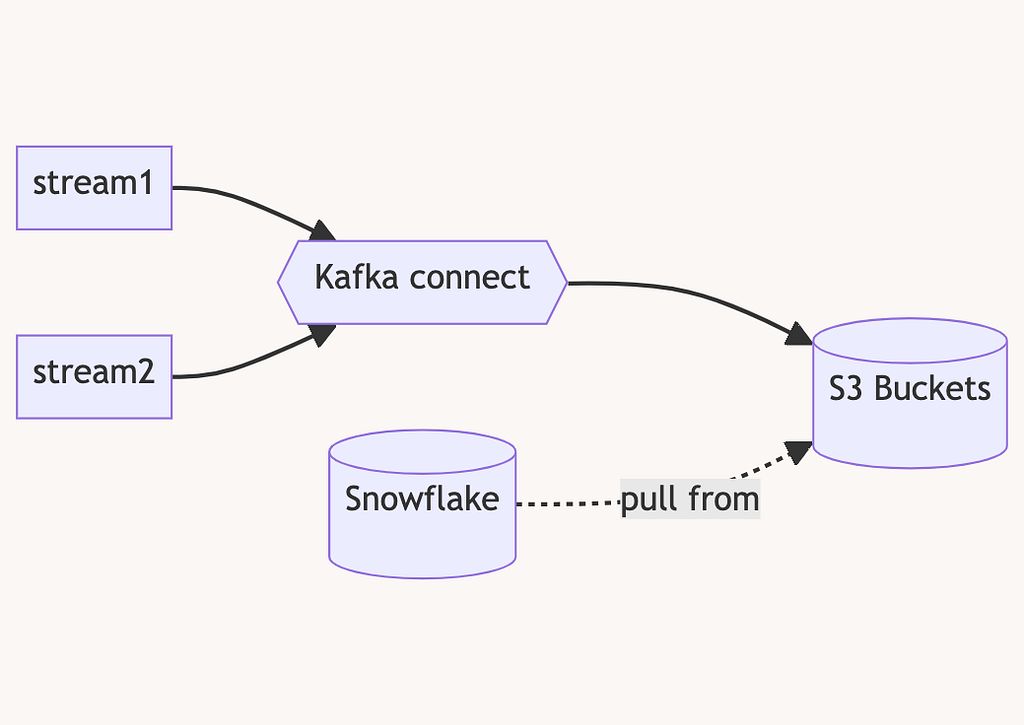
This approach simplifies the process by taking advantage of well tested tools and eliminating the need for custom application development.
For Kafka Connect, we use the provided S3SinkConnector and ParquetFormat.
To be able to select timeframes for import into Snowflake later, we use the HourlyPartitioner with the pattern
'year'=YYYY/'month'=MM/'day'=dd/'hour'=HH
This will result in objects in S3 Bucket under the path prefixed with year, month, day and hour like this:
s3://kafka-stream-xxx/content/year=2024/month=05/day=01/hour=11/data-001.parquet
Once the data is in the S3 Bucket (one bucket per stream we want to compare), we have to load the data into tables.
we need some boilerplate code first to connect Snowflake with S3 via storage integration:
CREATE STORAGE INTEGRATION s3_kafka_stream
TYPE = EXTERNAL_STAGE
STORAGE_PROVIDER = 'S3'
ENABLED = TRUE
STORAGE_AWS_ROLE_ARN = 'arn:aws:iam::xxx:role/xxx-stream-storage-integration-role'
STORAGE_ALLOWED_LOCATIONS = ('s3://kafka-stream-xxx/content/');
Then we create a “stage” which can be copied into a table for better query performance:
create temporary stage if not exists s3_import_stage
url = 's3://kafka-stream-xxx/content/'
storage_integration = s3_kafka_stream
file_format = (type = parquet);
create or replace table s3_import (DATA VARIANT) ;
copy into s3_import_legacy (data) from
(select * from @s3_import_stage) pattern = '(.*day=30/hour=.*/.*.(gz|snappy).parquet)'
Once the stage was created, we can run analysis. Let’s say we have imported the legacy stream into the table s3_import_legacy and the new implementation we want to compare against into s3_import_new.
One simple query is that we can compare the number of events in both streams in the same timespan. Since we only copied data from “day=30” earlier in the copy into… statement, we have only data from the same day in both tables:
// compare number of events in the same timespan
select count(*) from s3_import_legacy
select count(*) from s3_import_new
Snowflake imported each kafka message as one row in the table, the message is stored as a variant data type in one column. We can query the subfields of the message like this (e.g. the address of an advert on willhaben):
select data:address from s3_import_legacy limit 10;
But since we want to compare the legacy with the new stream messages, we can match up the messages by id and compare the data fields like that:
select old.data:address, new.data:address from s3_import_legacy old, s3_import_new new
where old.data:adId = new.data:adId and old.data:address != new.data:address limit 10
This query would display only addresses that are different in the old and new stream, hinting at a bug in the implementation!
Local Analysis with DuckDB
For local development and testing purposes, we can use a similar approach with DuckDB, a lightweight analytical data store:
- Write both streams to S3 using Kafka Connect as before
- Import the data from S3 into DuckDB
- Use SQL queries in DuckDB to analyse the data locally.
This solution allows developers to analyse Kafka streams locally without the need for a Snowflake instance. DuckDB has built-in capabilities to import data from S3 buckets in parquet format.
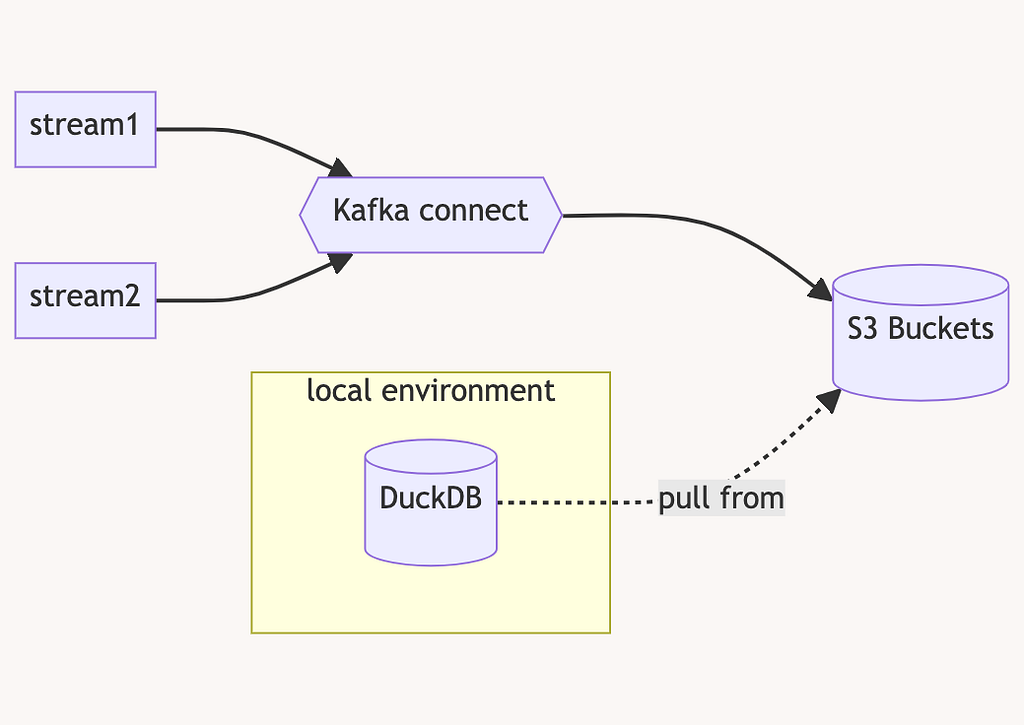
DuckDB can be installed on the developer machine and provides a command line tool with a REPL for SQL statements. We can import data from S3 in Parquet format like so:
CREATE SECRET (
TYPE S3,
KEY_ID 'zzz',
SECRET 'yyy',
SESSION_TOKEN 'xxx'
REGION 'eu-central-1'
);
SELECT count(*) FROM read_parquet('s3://kafka-stream-xxx/content//year=2024/month=04/day=30/hour=11/*.snappy.parquet');
That’s it! We now can run the same queries locally instead of snowflake (as long as they fit onto your machine’s disk and memory).
Conclusion
The approach of leveraging tools like Kafka Connect, Amazon S3, and Snowflake or for local and test environments DuckDB provides a robust and scalable solution for both production and local development environments.
By taking advantage of these tools, developers can streamline the analysis process, eliminate the need for custom application development, and focus on the core business logic. Ultimately, the ability to effectively analyse and compare Kafka streams empowers organisations to make data-driven decisions and maintain high-quality data pipelines.
Analysing Kafka Streams with Snowflake was originally published in willhaben Tech Blog on Medium, where people are continuing the conversation by highlighting and responding to this story.